

Blog
Why Does My Printer Keep Disconnecting From Wi-Fi?

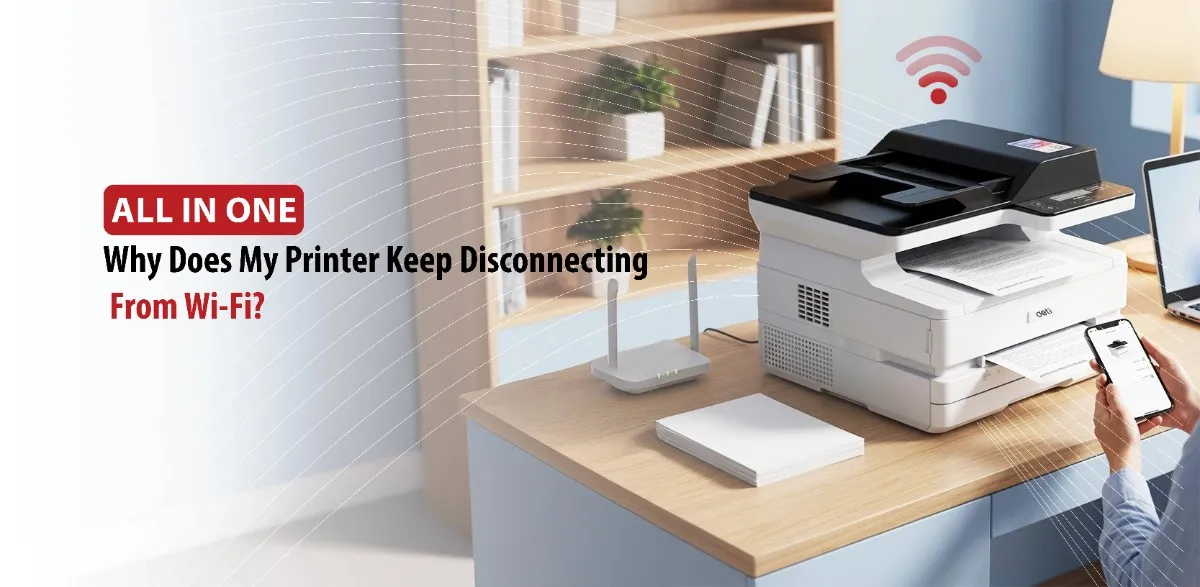
Wireless printers have made printing much more convenient for homes and offices. But it can be quite annoying when your wireless printer keeps disconnecting from Wi-Fi when you need to print something important, which can be frustrating especially when you don’t understand what is going on. This issue can stem from network problems, printer settings, software issues, or environmental factors. In this article, we’ve got you covered on identifying the most common causes and learning how to maintain a stable wireless printer connection.
First off, we’re going to start with why your printer keeps losing Wi-Fi connection.
Common Reasons Your Printer Keeps Losing Wi-Fi Connection
Weak or Unstable Wi-Fi Signal
One of the most common reasons that a printer disconnects from Wi-Fi is a weak or unstable wireless printer. If the printer is located far from the router, the signal may not be strong enough to maintain a consistent connection. Large pieces of furniture, walls, and floors can also reduce strength of the signal, especially in larger homes or offices.
Network Interference
Network interference is another frequent cause. Devices such as phones, Bluetooth equipment, baby monitors, and microwave ovens can interfere with wireless signals. In apartment buildings or populated areas, neighboring Wi-Fi networks may also compete for the same channels, leading to connection drops.
Power-Saving and Sleep Modes
Many modern printers include power saving or sleep modes designed to reduce energy consumption. While useful, these features can sometimes cause the printer to disconnect from the network after being not used for an extended period. When the printer wakes up, it may take time to reconnect automatically.
Router or Network Issues
Router related issues can also affect printer connectivity. Temporary software glitches, automatic router restarts, or network overcrowding caused by multiple connected devices can interrupt communication between the printer and the network.
How to Troubleshoot a Printer That Keeps Disconnecting
Before resorting to advanced fixes, start by restarting both the printer and the router. A simple reboot can clear temporary network errors and restore normal communication between devices.
If the problem persists, reconnect the printer to the wireless network. Access the printer’s network settings, select the correct Wi-Fi network, and enter the password carefully. Even a small error in network credentials can prevent a stable connection.
Checking signal strength is another important step. If possible, move the printer closer to the router and test whether the connection improves. If the printer works reliably in a closer location, distance or interference is likely contributing to the issue.
Assigning a static IP address can also help. Normally, a router assigns IP addresses automatically, and these addresses may change over time. A static IP ensures the printer always uses the same network address, making it easier for computers and mobile devices to locate it consistently.
In some cases, removing and reinstalling the printer on your computer may resolve the issue. This process clears outdated settings and allows the operating system to establish a fresh connection with the printer.
How Printer Drivers and Firmware Affect Wi-Fi Stability
Software plays a major role in printer performance. Printer drivers are programs that allow your computer to communicate with the printer. If drivers become outdated or corrupted, communication problems can occur, including intermittent disconnections.
Firmware is equally important, Unlike drivers firmware is built directly into the printer and controls many of its internal functions. Manufacturers regularly release firmware updates to fix bugs, improve security, and enhance network stability. Installing these updates can often resolve wireless connectivity issues.
Operating system updates can sometimes create compatibility challenges as well. After updating Windows, macOS, or mobile operating systems, older printer software may no longer function properly. Checking the manufacturer’s support page for the latest drivers and firmware can help ensure compatibility.
As a best practice, periodically review available updates and install them from official sources. Keeping printer software current not only improves Wi-Fi reliability but can also enhance overall performance and security.
Tips to Keep Your Printer Connected to Wi-Fi Long Term
Optimize Printer Placement
Preventing future disconnections often comes down to maintaining a healthy network environment. Start by placing the printer in a location with strong wireless coverage. Avoid positioning it behind thick walls, inside cabinets, or in areas with significant signal interference.
Maintain a Healthy Network
Regularly updating your router’s firmware can also improve network stability. Router manufacturers frequently release updates that address bugs, improve performance, and strengthen wireless connections.
Avoid Frequent Network Changes
It’s also helpful to avoid unnecessary changes to your network settings. Changing the Wi-Fi network name or password requires all connected devices, including printers, to reconnect. Keeping network settings consistent reduces the chance of connection problems.
Consider Alternative Connections
For environments that require maximum reliability, such as busy offices, consider using an Ethernet connection if the printer supports it. Wired connections eliminate wireless interference and provide a more stable connection. In larger homes, Wi-Fi extenders or mesh Wi-Fi systems can help improve coverage and maintain a strong signal throughout the building.
Conclusion
A printer that repeatedly disconnects from Wi-Fi can be frustrating, but the issue is often easier to solve than it appears. Weak signals, network interference, router problems, and outdated software are among the most common causes of wireless printer connection issues.
By following basic troubleshooting steps, keeping drivers and firmware updated, and optimizing your network setup, you can significantly improve connection reliability. With the right maintenance and a stable Wi-Fi environment, your printer can stay connected and ready to print whenever you need it.