

Blog
How to Share a Printer Between Multiple Computers

In many homes, schools, and offices multiple people need access to the same printer. Instead of buying a separate printer for every computer, printer sharing allows several devices to connect to and use a single printer. This approach reduces operating costs, saves space, and makes printer management much easier.
Whether you’re working from home, running a small business, or setting up a workplace, understanding how printer sharing works can help you create a more efficient printing experience.
In this guide, we’ll explore the benefits of printer sharing, the different methods available, how to set it up, and how to solve common issues.
Why Share a Printer Between Multiple Computer
What Does Print Sharing Mean?
Print sharing is the process of allowing multiple computers or devices to access and print through one printer. Instead of connecting one computer to the printer, the printer is available through a shared network.
When a user sends a print command, the print job travels through the network through the shared printer, where it is processed and printed.
Benefits of Printer Sharing
One of the biggest advantages of printer sharing is cost savings. Businesses and households can avoid purchasing multiple printers, while still meeting their printing needs.
Other benefits of printer sharing:
- Lower Maintenance Costs.
- Reduce spending on supplies and replacements.
- Better use of office or desk space.
- Easier printer management.
- Simplified monitoring of printer usage.
Where Printer Sharing is Most Useful
Printer sharing is beneficial in many places, including:
- Home users, where multiple family members use different computers.
- Small businesses, with limited budgets for equipment.
- Schools.
- Shared workspaces and coworking offices.
- Departments that frequently print documents, reports, and forms.
In these situations, a shared printer can support many users without delaying work and requiring additional hardware.
Wired vs. Wireless Printer Sharing
Printer Sharing can be done through wired or wireless connections.
Wired sharing often uses ethernet cables, it provides a stable connection and requires minimal interference. It’s often used in office environments where reliability is essential.
Wireless sharing uses Wi-Fi to connect devices to the printer. This option allows greater flexibility because users can print from different places without worrying about cables.
The best choice depends on the size of your workspace, the number of users, and the available network.
Methods for Sharing a Printer Across Multiple Devices
Sharing a Printer Through a Host Computer
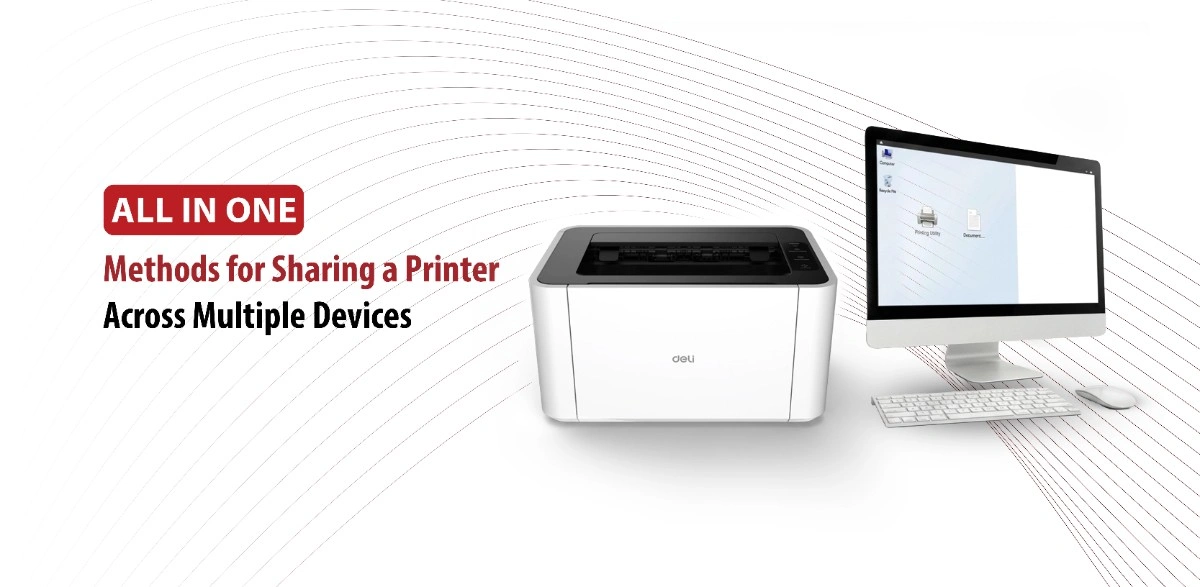
A host computer setup involves connecting the printer directly to one computer using a USB cable. The printer is then shared with other computers on the same network.
The host computer acts as the central connection point between the printer and the other devices.
When another computer sends a print job, the request passes through the host computer before reaching the printer. Because of this, the host computer must remain powered on and connected to the network.
Best Use Cases
This methods works well for:
- Small households.
- Temporary office setups.
- Environments with only a few users.
Advantages
- Low Setup Cost.
- Simple Configuration.
- No need for specialized networking equipment.
Limitations
- The host computer must stay online.
- Printing becomes unavailable if the host computer shuts down.
- Performance may decrease when handling multiple print jobs.
Sharing a Printer Through a Local Network
Many modern printers can connect directly to a local network using an ethernet cable.
The printer becomes a network device that can communicate with multiple computers independently.
Computers send print jobs directly to the printer through the router or network switch.
Benefits
- Increased Readability
- Better performances for multiple users.
- Doesn’t depend on a single computer.
- Easier management and monitoring.
Best Use Cases
Network printing is often the better option for offices, and teams with several employees.
Using a Wireless Printer
Wireless printers are one of the most convenient options for printer sharing.
These printers include built-in Wi-Fi capabilities, allowing them to connect directly to wireless networks.
How Multiple Devices Connect
Once connected to the network, devices such as desktop computers, laptops, tablets, and smartphones can all access the printer without needing cables.
Benefits of Wireless Sharing
Wireless printers offer many advantages:
- Flexible placement of the printer within the workplace.
- Fewer cables used.
- Easy device connectivity.
- Simple expansion as more users join the network.
Cloud Printing and Remote Access
Cloud printing allows you to send print jobs to a printer from anywhere by the internet, without a physical or local network connection. Cloud printing enables devices to communicate with printers through online platforms.
Common Use Cases
Cloud printing is particularly used for:
- Remote employees.
- Businesses with multiple locations.
- Mobile professionals who travel frequently.
Advantages
- Print from anywhere.
- Convenient access across multiple devices.
- Increased flexibility.
Limitations
- Depends on internet connectivity.
- May need additional security considerations.
- Setup procedures vary by printer manufacturer.
How to Set Up Printer Sharing Set by Step
Prepare the Printer
Before sharing, make sure the printer is functioning properly.
Verify Printer Functionality
Print a test page to confirm that the printer is working normally.
Install Necessary Drivers
Install the latest printer drivers on the connected computer. Updated drivers improve performance.
Confirm Network Connectivity
If using a network or wireless printing, ensure that the device is properly connected to the network.
Enable Printer Sharing
The next step is allowing computers to access the printer.
On a Windows Computer
Go to the printer settings and enable the printer sharing option. Assign a clear and recognizable name to make identification easier for users.
Important Settings to Review
Check the following:
- Printer sharing permissions.
- Network discovery settings.
- Device visibility options.
Proper arrangements can help connection problems later.
Connect Additional Computers
Once sharing is enabled, other devices can connect to the printer.
Locate the Shared Printer
Search for available printers on the network and select the shared device.
Install Printer Drivers
Most systems will automatically install the required drivers. If not, manually download and install them.
Verify Access
Confirm that each computer can detect and connect to the printer successfully.
Test the Shared Printer
Testing ensures the setup works correctly.
Print a Test Page
Send a simple document or test page from each connected computer.
Check Print Queue Behavior
Verify that print jobs are processed in the correct order without delays.
Confirm User Access
Ensure every authorized user can print without restrictions.
Common Printer Sharing Problems and How to Fix Them
Shared Printer Not Appearing on the Network
Possible Causes
- Network discovery is disabled.
- Sharing settings are incorrect.
- Connectivity issues exist.
Troubleshooting Steps
- Verify network settings.
- Restart the printer and connected devices.
- Re-enable printer sharing.
Computers Cannot Connect to the Shared Printer
Common Reasons
- Incorrect user permissions.
- Firewall restrictions.
- Driver conflicts.
Solutions
- Review sharing permissions.
- Temporarily test firewall settings.
- Update or reinstall drivers.
Print Jobs Are Stuck in the Queue
Causes
- Communication interruptions.
- Corrupted print jobs.
- Printer memory limitations.
Fixes
- Clear the print queue.
- Restart the print spooler service.
- Restart the printer.
Printer Appears Offline
Why It Happens
- Wi-Fi disconnections.
- Power-saving settings.
- Network outages.
How to Resolve It
- Check network connectivity.
- Reconnect the printer to Wi-Fi.
- Restart the printer and router.
Slow Printing Performance
Potential Causes
- Weak network signals.
- Large print files.
- High demand from multiple users.
Optimization Tips
- Improve network coverage.
- Reduce unnecessary high-resolution printing.
- Schedule large print jobs during off peak hours.
Conclusion
Sharing a printer between multiple computers is a practical solution for homes, schools, and businesses looking to reduce costs and improve efficiency. Whether you choose a host computer setup, a network printer, or a wireless printing solution, the right arrangement can provide reliable access for all users.
By following proper setup procedures, maintaining updated drivers, and addressing common issues quickly, you can create a smooth printing experience that supports multiple devices while maximizing the value of your printer investment.