

Blog
How to Scan a Document and Copy Text

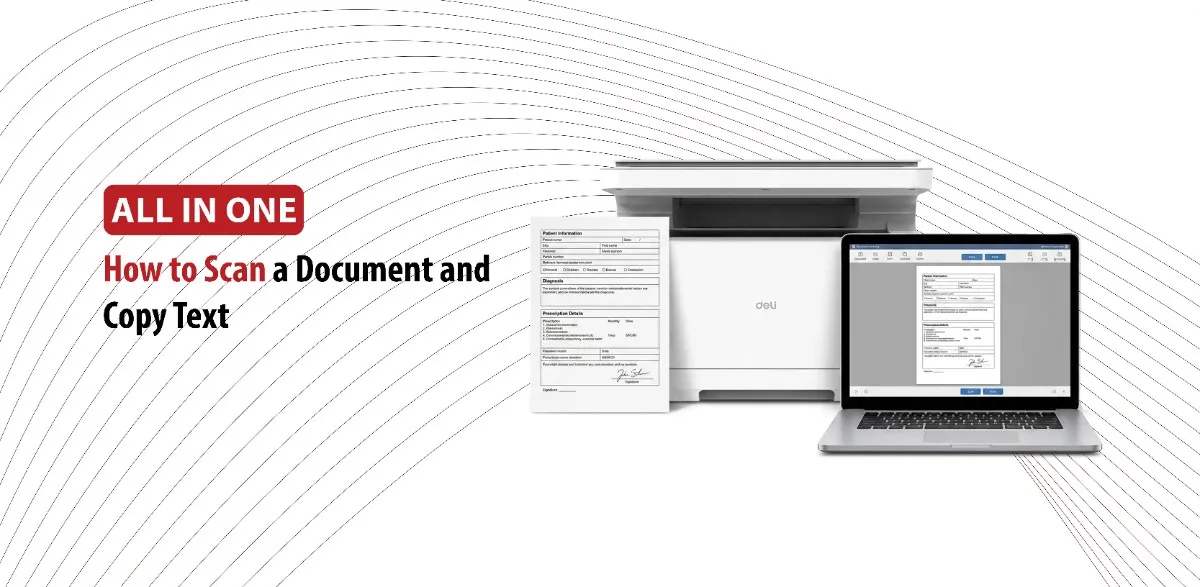
Nowadays a lot of people prefer having documents and files on their phones instead of walking around with a lot of papers. Scanning makes this process easier.
Scanning a document is when you convert a physical piece of paper into a digital file, like a pdf, using a device, such as a scanner.
Scanning can be used in multiple ways, for example digitizing contracts and business records for easy access, or passports, birth certificates, and driver’s license to have them at all times, or books, and notes for studying, or you can scan old photographs to cherish these memories.
OCR, Optical Character Recognition, is the technology that converts printed documents into digital text that can be editable.
What You Need Before Scanning a Document
Choosing the Right Device
- Multifunction Printer: A multifunction printer combines printing, scanning, and copying all in one machine. It can be the perfect option in any busy environment.
- Flatbed Scanner: A flatbed scanner is an input device that digitizes physical documents, photos, and 3D objects into digital files. It can work best at home, in a workplace a faster scanner is better.
- Smartphone scanning apps: They turn your phone’s camera into a portable document scanner. They use OCR to make text searchable and editable. They can be the easiest and fastest way to scan documents.
Optical Character Recognition
Referred to as text recognition OCR makes it easy to convert printed texts into digital ones that can be edited and adjusted. OCR saves time and reduces manual typing.
OCR accuracy is crucial because it turns documents into machine readable texts. Even the tiniest error can cause massive predicaments.
Preparing Your Document for the Best Results
There are a few things to do before scanning to get the best results:
- Remove staples and paper clips to avoid tearing the paper or breaking the scanner glass.
- Make sure that the paper is free of folds and wrinkles to make sure that no text is cut.
- Ensure that the text is readable to avoid any mistakes when scanning.
- If you’re scanning from your phone use proper lighting.
Step-by-Step Guide to Scanning and Extracting Text
Scan the Document
Place the document you’re going to scan according to alignment guides. Select your preferred scan settings from the scanner software or mobile app. Once everything is ready, begin the scanning process.
After the scan is done, look at the image carefully. Make Sure that all the text is visible and easy to read before continuing.
Save the Scan
After scanning, there are two ways to save your document according to what you scanned:
- PDF files are ideal for keeping documents and sharing files.
- PNG and JPEG files work well when converting images.
- DOCX is best when you are still editing the text.
Use OCR on the Scanned Document
Next, open your OCR software. OCR will analyze the images and identify its text. It makes your document editable and searchable.
Many modern printers and scanning applications have built in OCR functionality, making this step easier.
Although OCR technology became highly accurate, mistakes can still happen.
Make sure to review the concerted text carefully, look for misspelled words, incorrect punctuation and misread numbers or dates.
Scanning Problems and How to Fix Them
You might face some problems when scanning your document but don’t worry we’ve got you covered with how to fix them.
Blurry Scans
Blurry scans happen because of dirty scanner glass or low resolution settings.
To improve the quality:
- Clean the scanner glass to remove any dust or smudges.
- Increase DPI (dots per inch) to 300.
- Keep the documents flat when scanning.
OCR Fails to Recognize the Text
There are a few reasons why OCR might fail to recognize the text.
How to avoid these problems:
- Improve image quality: Low resolution and poor image quality can decrease OCR accuracy.
- Straighten the document: Make sure the document is placed correctly. Curved pages can heavily impact recognition.
- Ensuring documents are clean and readable.
The clearer and better quality the scan is, the more accurate the OCR will be.
Handwritten Text Challenges
Handwritten documents are one of the hardest tasks for OCR.
To improve results:
Use clear handwriting.
Increase image quality.
Make sure to review the extracted text carefully.
Conclusion
Learning how to scan a document and copy text can make document management faster and easier. Whatever type of scanner you’re using to convert printed pages into editable texts. By following this guide, you can improve quality and accuracy, increase productivity, and get the best out of your scanning device.