

Blog
How to Speed My Printer Up

One of the most frustrating things is sending a document to a printer and waiting a lot longer than expected for the first page to come out. Whether you’re using it for schools, offices, or homes, slow printing can interrupt your workflow and decrease your productivity.
The good news is that a slow printer doesn’t mean you need a new device. In many situations, the problem is usually caused by settings, connectivity problems, or lack of maintenance. By identifying the source of the slowdown and making a few adjustments, you can improve printer performance and get documents printed quickly.
Why Is Your Printer Printing Slowly?
Before trying to speed up your printer, understanding what might cause the delay helps. Print speed is influenced by multiple factors, including the type of document being printed, the printer’s settings, and the way it connects to your computer or network.
Large documents with high resolution images often take longer to process than simple text files. For example, a multi-page PDF filled with graphics and charts requires more data to be transferred and interpreted before printing can begin. This can create a more noticeable delay, even if the printer itself is working normally.
Outdated printer drivers can also affect performance. Drivers act as a bridge between your printer and computer, and older versions may not communicate as efficiently as updated ones. In some cases, software conflicts can cause print jobs to pause or process slowly.
Wireless connectivity is another common factor. A weak Wi-Fi signal can slow the transfer of print data, especially when multiple devices are connected to the same network. Additionally, older printers may have slower processors and less memory, making them less capable of handling print jobs quickly.
Understanding the cause of the slowdown is the first step toward finding the most effective solution.
Adjust Printer Settings for Faster Printing
One of the easiest ways to increase speed is to adjust your settings. Many printers are adjusted to prioritize print quality rather than print speed, but that may not be necessary for everyday documents.
Switching from a high quality setting to Standard or Draft mode can significantly reduce printing time. Draft cases use less ink and allow the printer to produce pages more quickly, making it ideal for internal documents, notes, and drafts that don’t require professional quality output.
Another useful adjustment is reducing print resolution. Higher DPI (dots per inch) settings create sharper images and text but require more processing power and time. For most office documents, a standard resolution provides a good balance between quality and speed.
Printing in black and white instead of colors can also help. Color printing requires the printer to manage multiple ink or toner cartridges and process additional information, which can slow down output. If color isn’t essential, monochrome printing is often the faster option.
Improve Your Printer’s Connection and Performance.
A printer’s connection plays a major role in how quickly print jobs are received and processed. Even a fast printer can appear slow if the connection between the printer and the computer is unstable.
If possible, use a USB connection for large or important print jobs. A direct cable connection is generally faster and more reliable than Wi-Fi because it eliminates the possibility of wireless interference. This can be particularly helpful when printing graphics heavy documents.
For wireless printers, improving the Wi-Fi signal can make a noticeable difference. Placing the printer closer to the router, reducing physical obstructions, and minimizing interference from other electronic devices can improve communication between devices.
Another simple setup is clearing the print queue. Sometimes old or stalled print jobs remain in the queue and prevent new documents from printing efficiently. Removing unnecessary jobs can restore normal performance.
Restarting the printer, computer, and router can solve the temporary software and network issues. These quick resets often eliminate communication problems that may be slowing down the printing process.
Additionally, keeping printer drivers updated ensures the printer benefits from performance improvements, bug fixes, and compatibility enhancements provided by the manufacturer.
Maintain Your Printer to Keep It Running Fast
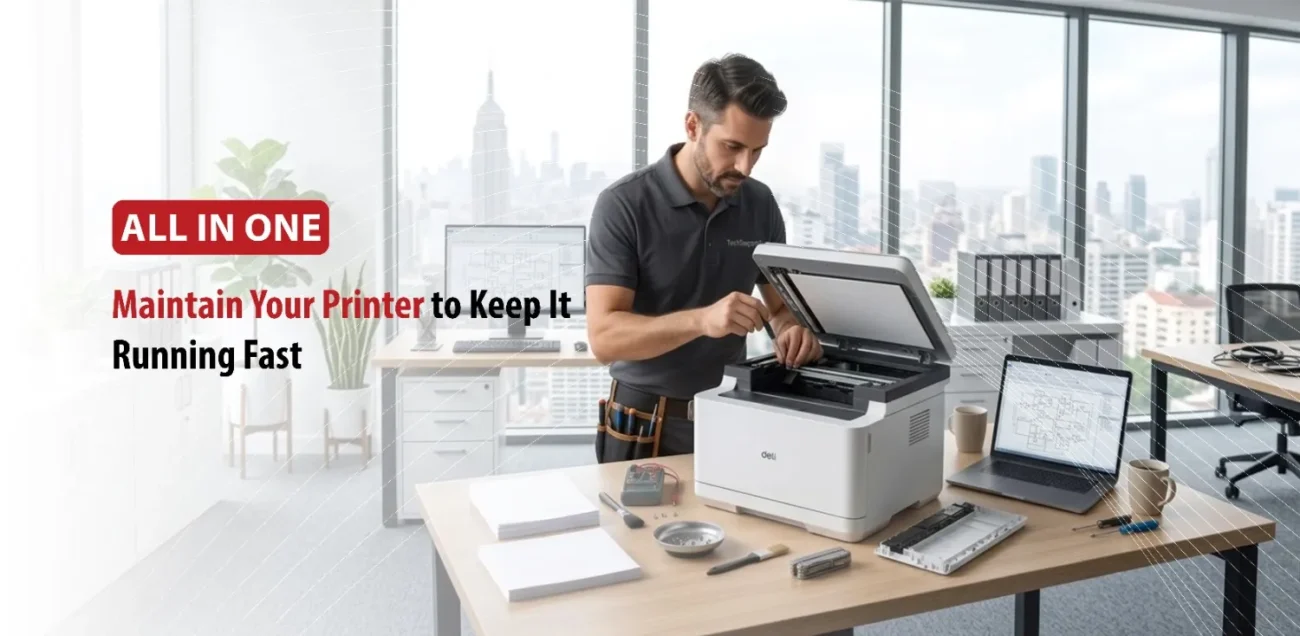
Regular maintenance is essential for keeping your printer operating efficiently. Over time, dust, dried ink, and worn components can affect both print quality and speed.
Many inkjet printers include built-in print head cleaning tools. Running these maintenance functions periodically helps prevent clogs that can slow printing and lead to poor output quality.
Cleaning paper rollers can also improve paper feeding and reduce delays caused by misfeeds.
Monitoring ink or toner levels is equally important. Some printers automatically reduce performance when supplies are running low. Replacing cartridges before they become completely damaged can help maintain consistent speed and print quality.
Paper handling should not be overlooked. Using the correct paper type and storing and paper in a dry environment reduces the risk of jams and feeding issues. Frequent paper jams not only slow printing but can also place unnecessary stress on the printer’s internal components.
Finally, checking for firmware updates and following the manufacturer’s recommended maintenance schedule can help extend the life of your printer while keeping it performing at its best.
Conclusion
A slow printer can often be improved without expensive upgrades or repairs. By identifying the cause of slowdown, optimizing print settings, improving connectivity, and performing regular maintenance, you can significantly increase printing speed and efficiency. Small adjustments such as using Draft mode, updating drivers, or clearing the print queue can make a noticeable difference. With the right approach, your printer can deliver faster, more reliable performance and help you stay productive throughout the day.