

Blog
How to Print from Your Phone: Android & iOS Guide

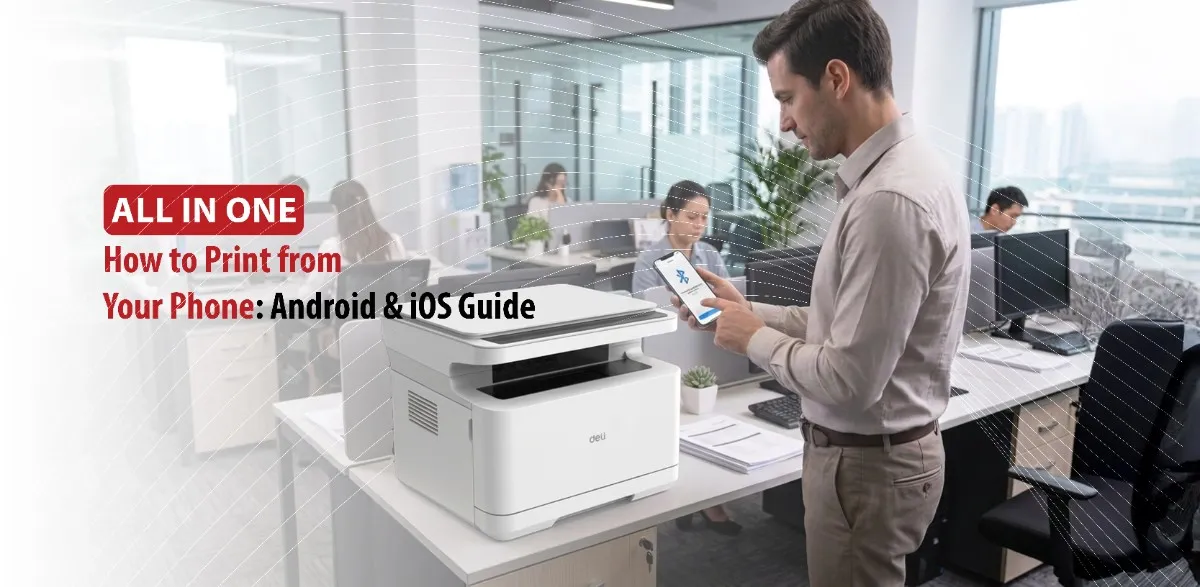
Need to quickly print an important document from your phone? We’ve got you covered. Mobile printing makes it possible in just a few steps.
Printing directly from your phone is much more convenient, it doesn’t require the use of a computer, it allows faster document and photo printing, and it is useful for work, school, and home.
To print from your phone it is important to have a compatible printer that supports Wi-Fi printing, Bluetooth, or USB connection. Ensure that both your phone and printer are connected to the same network. And lastly the printer must have sufficient ink.
First we’re going to talk about how to print from Android & iOS.
How to Print from an Android and iPhone
Printing from an Android
By following these steps you should be able to print documents easily from your Android phone to your printer:
- Ensure printer compatibility: Make sure your printer supports mobile printing. Most modern printers support this feature.
- Connect to the Same Network: Ensure that both your phone and printer are connected to the same Wi-Fi network.
- Open Document or Photo: Navigate to the image in your gallery, or the PDF in your Files app.
- Find the Print Option: Tap the three-dot menu or the share icon. Select Print from the menu.
- Select Your Printer: Adjust any desired settings and tap the yellow or blue Print icon.
Printing from an iPhone or iPad
Most modern wireless printers support Apple AirPrint. If your printer has this feature, you don’t need to download any extra software.
- Connect the Wi-Fi: Ensure your iPhone and printer are connected to the Wi-Fi network.
- Find the Share Button: Open the document, email, or photo you want to print, then look for the share button.
- Select Print: Scroll down through the sharing options and tap Print. If you don’t see it, tap more to add it to your menu.
- Choose your Printer: Tap no printer selected or tap the current printer name to scan for AirPrint-enabled printers on your network.
- Adjust Settings: Select the number of copies, page range, or color options.
- Print: Tap print in the top right corner to send the job to the printer.
Wireless Printing vs. Bluetooth Printing
Wireless printing connects your phone and printer by your home or office network, while Bluetooth printing pairs the two devices directly.
Wi-Fi Wireless Printing
- Device Range: Functions anywhere within your Wi-Fi router’s range.
- User Capacity: Supports multiple users printing at the same time.
- Setup: Requires initial setup connecting the printer to your network.
- Speed: Generally faster for large or complex documents.
- Common Use Cases: Home offices, shared family printers, and standard documents.
Bluetooth Printing
- Device Range: Limited to a short distance, typically up to 10 meters.
- User Capacity: Restricted to a one-to-one connection at a time.
- Setup: Offers a plug-and-play simplicity without needing a router or network.
- Speed: Generally slower, making it less efficient for large documents.
- Common use Cases: Portable receipt printers, instant photo printers, and labeling devices.
Conclusion
Having to transfer files to a computer before printing has become dated. Wireless printers make it much easier and faster to print documents, photos, emails from your phone with just a few taps.